Tag: photos

  • How to Take Sharp Photos

    How to take sharp pictures

    1. Set the right ISO

    Start with setting your camera to the lowest ISO “base” value (in my Nikon camera it is ISO 200). Remember that the camera base ISO will produce the highest quality images with maximum sharpness. The higher the ISO (sensor sensitivity), the more noise you will see in the image. I suggest reading my article on understanding ISO.

    2. Use the hand-holding rule

    If you have a zoom lens that goes beyond 100mm, I would recommend applying the general hand-holding “rule”, which states that the shutter speed should be equivalent to the focal length set on the lens, or faster. For example, if you have your lens zoomed at 125mm, your shutter speed should be at least 1/125 of a second.

    Keep in mind that this rule applied to 35mm film and digital cameras, so if you own an entry-level DSLR or mirrorless camera with a crop factor (not full frame), you need to do the math accordingly.

    For Nikon cameras with a 1.5x crop factor, just multiply the result by 1.5, whereas for Canon cameras, multiply by 1.6. If you have a zoom lens such as the 18-135mm (for Nikon DX sensors), set the “Minimum Shutter Speed” to the longest focal range of the lens (135mm), which is 1/200 of a second. Here are some examples:

    • 50mm on Nikon DX (D3500/D5600/D7500): 1/75 (50mm x 1.5)
    • 100mm on Nikon DX (D3500/D5600/D7500): 1/150 (100mm x 1.5)
    • 150mm on Nikon DX (D3500/D5600/D7500): 1/225 (150mm x 1.5)
    • 200mm on Nikon DX (D3500/D5600/D7500): 1/300 (200mm x 1.5)
    • 300mm on Nikon DX (D3500/D5600/D7500): 1/450 (300mm x 1.5)

    Remember that this only affects blur from camera shake. If you are taking pictures of a fast-moving subject, you very well may need a quicker shutter speed than this in order to get a sharp picture.

    3. Choose your camera mode wisely

    When I’m taking pictures in low light, 99% of the time, I shoot in Aperture-Priority mode and set the aperture to the widest setting on my lens – the maximum aperture, AKA the smallest f-number.

    This is usually in the range of f/1.4 to f/5.6 depending on the lens. (For example, with the Nikon 35mm f/1.8 lens, I will set the aperture to its maximum value of f/1.8.) The camera automatically meters the scene and guesses what the shutter speed should be to properly expose the image.

    You can easily adjust the camera’s guess with exposure compensation. So, set your camera to aperture-priority mode and set the aperture to the lowest possible f-number. Set your metering to “Matrix” on Nikon or “Evaluative” on Canon, so that the whole scene is assessed to estimate the correct shutter speed.

    4. Pick a fast enough shutter speed

    After you set your basic camera settings to aperture priority and pick the right metering mode, point it at the subject that you want to photograph and half-press the shutter. Doing so should show you the shutter speed on the bottom of the viewfinder.

    If the shutter speed is showing 1/100 or faster, you should be good to go, unless anything in your photo is moving quickly (or if you’re using a long telephoto lens; remember the hand-holding rule). Snap an image or two and see if you are getting any blur in your image.

    I typically review my images on the back of the camera at 100% and make sure that nothing is blurry. If anything in your photo is blurry – the entire image, or just one fast-moving subject – use a quicker shutter speed like 1/200 or 1/500 second.

    On the other hand, if the shutter speed is below 1/100, it might mean you simply do not have enough light. If you are indoors, opening up windows to let some light in or turning the lights on will help to increase your shutter speed. It is still possible to capture sharp photos faster than 1/100 second handheld, but it becomes increasingly more difficult the longer your shutter speed is.

    5. Use high ISO in dark environments

    If you are still getting blurry images, try to hold the camera steady without shaking it too much and take another picture. If that doesn’t help, set a fast enough shutter speed or steady exposure compensation to capture sharp photos, and raise your ISO instead. You can do this via Auto ISO (described in the next section) or manually increasing ISO.

    In dark environments, it is not unusual to use quite a high ISO in order to get a fast enough shutter speed. Although this adds more noise/grain to a photo, that is usually better than capturing a blurry image.

    6. Enable auto ISO

    Many cameras today have an “Auto ISO” feature that is very useful for capturing sharp pictures. So, set it to “On.” Set your Maximum Sensitivity to ISO 1600.

    If you have the option to select a minimum shutter speed, set it to “Auto” as well, which automatically applies the hand-holding rule! If you don’t have this option, set “Minimum shutter speed” to 1/100 second.https://ddf44c9d731c0a23cadf383b651223fe.safeframe.googlesyndication.com/safeframe/1-0-38/html/container.html

    This is a useful feature because, if the amount of light entering the lens decreases and the shutter speed goes below 1/100 of a second, the camera automatically increases ISO to keep the shutter speed above 1/100 of a second, or above the hand-holding rule.

    If you have shaky hands, I would recommend bumping up the “Minimum shutter speed” to something like 1/200-1/250. Or if you have the “Auto” minimum shutter speed option, prioritize it toward “faster” just to be on the safe side. Also, see our separate article on how to hand-hold a camera as stable as possible.

    Some cameras don’t have an Auto ISO feature. In that case, you will have to adjust ISO manually to do the same thing. Just raise your ISO in darker environments to keep your shutter speed at a reasonable level. I don’t recommend raising the ISO above ISO 1600 or perhaps ISO 3200.

    Why not? Quite simply, anything higher than that in an entry-level DSLRs produces too much noise, which has a negative impact on overall image quality. On older-generation DSLRs such as Nikon D90/D200/D3000/D5000, you might want to keep the maximum ISO to 800.

    7. Hold your camera steady

    While hand-holding your camera, there is a direct correlation between the camera shutter speed and blurry images. The longer the shutter speed (especially below 1/100 of a second), the higher the chance for blurrier images.

    Why? Because while hand-holding a camera, factors such as your stance, breathing, camera hand-holding technique all play a huge role in stabilizing the camera and producing shake-free images.

    Think of it as holding a rifle on your hand. You wouldn’t want to move around while trying to shoot – you need to stand as steady and stable as possible, pull the stock tightly into the shoulder, exhale, and then shoot. The same technique works great for your photography, especially when you have to deal with slow shutter speeds.

    I recommend holding the camera just like you would hold a rifle (except your right-hand goes on the shutter instead of the trigger), with one of your legs on the front and your body balance spread across both legs.

    I personally exhale when I shoot long shutter speeds handheld, like 1/10 second, and it does help me to get sharper images. Try it and see how it works for you. The difference between shooting a camera versus a rifle, is that you can at least adjust the shutter speed to a higher number and avoid camera shake, whereas you cannot do the same on a gun.

    8. Focus carefully on your subject

    Learn how to focus correctly and deal with focusing issues. This one is very important, as your camera focus directly impacts image sharpness. The first thing you need to learn is how to differentiate between a camera shake/motion blur and a focus problem.

    If the subject in your image is blurry, but something closer to the camera or farther away is perfectly in focus and sharp, it is most likely a focus issue. If the whole image is blurry and nothing is sharp, it is generally due to using too long of a shutter speed handheld.

    And lastly, if a fast-moving object in your photo is blurry/streaky in the direction of travel, then your shutter speed is not fast enough to eliminate subject motion. That isn’t a focus problem; use a faster shutter speed.

    If you are having problems acquiring a good focus, here are some things that I recommend for you:

    • Lack of light can cause auto-focus malfunction, resulting in inaccurate focus acquisition by the camera. Make sure there is plenty of light for your camera to properly focus.
    • The center focus point is generally the most accurate in cameras. If you are having problems acquiring focus because your focus point is elsewhere, I recommend moving it back to the center, focusing, and recomposing.
    • Many cameras let you select a separate button for focusing, without touching the shutter release button. I set my camera this way, focusing exclusively on my thumb while pushing the shutter trigger with my index finger. This is known as back-button focusing. It takes some time to get used to back-button focusing if you’re familiar with half-pressing the shutter button instead. However, you may find it useful once you try it out.
    • The camera autofocus system works by looking at the contrast around the focus area. For example, if you try to focus your camera on a clean white wall, it will never be able to acquire focus, because the camera will not see any areas of contrast. On the other hand, if you have a white wall with a dark object on it and you put your focus point in between the wall and the object, your camera will instantly acquire the correct focus. My recommendation is to place the rectangular focus point on an area with the most contrast. Examples are edges of objects, lines separating different colors, numbers, and letters printed on objects, etc.
    • Focus multiple times until you can clearly see in the viewfinder that the object is in focus. For this one, you need to have a good viewfinder and a good vision. Some entry-level DSLRs have a very small viewfinder, making it hard or sometimes even impossible to see if you are getting the correct focus. Unfortunately, there is not much you can do if you cannot tell if the subject is in focus by looking into the viewfinder, so just take multiple pictures while constantly re-adjusting the focus and review images on the camera LCD.

    9. Reduce motion blur in your subject

    If you are photographing a person, tell them to freeze and not move while you take their picture. When you work with slow shutter speeds, even if you do everything right, your images might still come out blurry just because your subject moved while the shutter was open. This is called motion blur.

    Sometimes people like the effect of the motion blur, especially for high-speed objects like cars. To reproduce this effect on your camera, set your camera to Shutter-Priority mode, then set your shutter to 1/100 of a second or less. Ask your subject to move his/her hand quickly, while not moving the body. The result should be a sharp picture of the person’s body while having a motion blur on his/her hand.

    As you can see from the above image, everything in the image is sharp, while the fan is blurred through motion blur, which I specifically created by shooting the image in low shutter speed of 1/20 of a second (the image was shot hand-held).

    Here is another example of motion blur that I shot at night on a tripod (shutter speed is 2 seconds):

    So, if you want motion blur, use a long shutter speed like 1/10 second or even several seconds (if you’re using a tripod). But you’ll usually want to avoid motion blur when taking pictures of people or action, so make sure to use a fast enough shutter speed.

    The hand-holding rule doesn’t apply if your subject is moving very quickly, because it is all about eliminating camera shake blur, not motion blur from your subject. For photos of hummingbirds, for example, I might set 1/1000 second or 1/2000 second and still get some blur in the wings!

    10. Turn on vibration reduction

    Make sure that your vibration reduction (VR on Nikon) or image stabilization (IS on Canon) is set to “On” on your lens if you have it. Many of the consumer zoom lenses have some sort of anti-shake/vibration reduction technology in them, allowing one to shoot at slower shutter speeds and still get sharp images.

    If you have one of those lenses, go ahead and try lowering your shutter speed to a lower value. You can even lower down the “minimum shutter speed” in your Auto ISO settings to something like 1/50 of a second and still get sharp images.

    11. Use a faster lens

    Get a good fast prime lens such as the Nikon 35mm f/1.8 DX or 50mm f/1.4 / f/1.8 lenses. These prime lenses are relatively inexpensive, ranging between $200 to $400 for the f/1.4 model.

    Very few zoom lenses can achieve the same optical quality as the prime lenses, because prime lenses have simpler design and are optimized to perform for only one focal range. Although you lose the ability to zoom in and out, prime lenses are much faster than most zoom lenses and are excellent choices for low-light and portrait photography.

    Because of the shallow depth of field, prime lenses are also capable of producing pictures with beautiful bokeh (nicely blurred backgrounds). When I got my hands on my first prime lens, I just could not believe how much of a difference it made in terms of sharpness. If you have never used a prime lens before, give it a try and you will not regret it.

    12. Use depth of field strategically

    When photographing people or animals, always focus on the closest eye to you. This is very important, especially when dealing with large apertures between f/1.4 and f/2.8 because your depth of field will be very shallow. As long as the eye of the subject is sharp, the image will most likely be acceptable. Take a look at this photograph of my son Ozzy:

    Normally, I delete images like this, but I’m glad I kept it for this article. As you can see from the above image, I failed to acquire the correct focus on Ozzy’s eye and somehow focused on his hair instead. Now, compare it to this image:

    Such a big difference between the two. The second image looks much sharper, although I was using the same camera settings.

    13. Pick a sharp aperture

    Aperture also plays a role in achieving optimal sharpness. For landscape photography, I mostly use apertures between f/8 and f/11, while for portraits, I use apertures of f/1.4 to f/8, depending on what I want to do with the background.

    Most lenses are sharpest between f/5.6 and f/8, so if you are shooting during a bright sunny day, try setting your aperture to a number between f/4 and f/8 and see if it makes a difference. Just keep in mind that playing with aperture changes the depth of field and will have an impact on the lens bokeh, which are usually more important than the sharpness effects.

    14. Clean your lenses!

    An amateur photographer approached me once and asked for advice on what he could do to bring more contrast and sharpness to his images. When I saw the front element of his lens, I immediately made a suggestion to clean his lens. It was so dirty that I couldn’t believe he was still able to take pictures.

    A dirty and greasy front element of the lens is a guarantee to inaccurate camera focusing and poor image contrast. If you don’t know how to do it properly, check out my article on how to clean DSLR lenses.

    15. Use a tripod in low light

    Get a tripod for low-light situations (see my article on how to choose a tripod). For shooting lightning storms, fireworks, city lights, and other cool stuff at night, a sturdy tripod is a must! Don’t buy a cheap tripod designed for point-and-shoot cameras, but rather invest in a heavy-duty, sturdy tripod that can handle your DSLR or advanced mirrorless camera.

    Having a self-timer mode or a cable/wireless shutter release is also very helpful to minimize camera shake. The below image would not be possible to capture without a tripod, since I took it at a shutter speed of five seconds:

    16. Shoot a burst of photos

    Set your camera to a “continuous shooting” mode (also known as burst mode), then photograph your subject in bursts by just holding the shutter button. Especially if you are photographing a moving subject like children, burst mode helps improve the odds that you’ll get a shot that is spot-on.

    With most cameras today, you can fire off at least 3 photos per second, and often more like 4 or 5. With a bit of panning to follow along with your subject, you can get sharp photos even when your subject doesn’t stay still!

    Sometimes, you’ll get just enough of the face (of say a happily-running kid) in focus then everything else gets blurred because of the motion, leaving you with a nice isolation that highlights the emotion of that moment. This valuable tip was provided by our reader Eric.

    I hope you liked this article on how to take sharp photo with your DSLR or mirrorless camera. Please let me know if you have any questions. And learn more about What is Spherical Aberration?.
  • Basic camera settings

    Many beginner photographers often wonder what camera settings they should use to get the best possible results with their current camera gear. While there is no set rule for camera settings that work well in every shooting environment, I noticed that there are some settings that I personally set on every camera I use, which are universal across all brands of cameras on the market.

    These are the “base” settings I set initially – once they are done, I rarely ever revisit them. In addition, there are particular camera modes that make the process of capturing images easier or quicker, especially for someone who is just starting out. Let’s go through these basic camera settings in more detail!

    Common Camera Settings

    Camera setup

    First, let’s go over some of the camera settings that should apply to any modern digital camera. You should be able to find all the settings specified below, since they are more or less universal across different camera brands and models:

    • Image Quality: RAW
    • RAW Recording: Lossless Compressed (if available)
    • White Balance: Auto
    • Picture Control / Picture Style / Creative Style / Film Simulation: Standard
    • Color Space: sRGB
    • Long Exposure Noise Reduction: On
    • High ISO Noise Reduction: Off
    • Active D-Lighting / DRO, HDR, Lens Corrections (Vignette Control, Chromatic Aberration Control, Distortion Control, etc): Off

    The above are the most important camera settings. First, you always start out by selecting the proper file format, which is RAW. If there is a setting for selecting RAW compression, always select Lossless Compressed, as explained here, since it reduces the amount of space your RAW files consume. While things like Picture Controls don’t matter for RAW images (they only impact the way the image appears on your camera’s LCD), it is best to stick with a standard profile without tweaking any other settings like Sharpening, Contrast, Saturation, etc, as such settings only matter if you shoot in JPEG format.

    The same with color space and white balance – you do not have to worry about them when shooting RAW since you can change them later. Unless you know what you are doing, I would keep “long exposure noise reduction” turned on, since it does affect your RAW images when shooting long exposures – it works by reducing the amount of noise you will see in your images (although it will also double the amount of time it normally takes to capture an image). All other in-camera lens corrections, dynamic range optimizations, and noise reduction options should be turned off as well since they do nothing to improve your RAW images.

    Once you have the above settings set up in your camera, it is time to move on to things that matter when taking pictures.

    Best camera shooting mode

    While some photographers argue that it is best to always shoot in Manual Mode to have full control over your camera, I would strongly disagree with that. Considering how amazing modern cameras have gotten when it comes to properly metering a scene and exposing a subject, there is very little reason to actually shoot in Manual Mode, so why not use one of the semi-automated camera modes instead?

    For example, I personally rely on the Aperture Priority mode of my camera 90% of the time, because it does a great job and I have full control not just over my camera aperture, but also over how bright or dark I want an image to appear. If my camera takes a brighter image than I would like it to be, I simply use the Exposure Compensation button to adjust my exposure and I am set:

    If you are wondering whether it is good to shoot in any of the “Scene” modes of your camera (such as Macro, Sports, Fireworks, etc), I would discourage the use of these modes for a number of reasons. The main reason is that such autofocus modes vary greatly not just between different camera manufacturers, but also different models.

    So if you learn to always rely on a particular scene mode on one camera and decide to upgrade to a new one in the future, you might not be able to find the same scene mode on a different camera model. It is also important to highlight that most higher-end and professional camera models don’t even come with scene modes in the first place.

    Best autofocus mode

    You should always make sure that you are shooting in the best autofocus mode depending on what you are photographing. For example, if you photograph a still subject, you might want to use Single Area Focus Mode (also known as “Single Area AF”, “One-Shot AF” or simply “AF-S”), whereas if the subject you are photographing is continuously moving, you would want to switch to Continuous / AI Servo Focus Mode, since you would probably want your camera to actively track your subject.

    To make it easier for beginners, camera manufacturers sometimes include a hybrid mode that automatically switches between Single Area Focus Mode and Continous / AI Servo Focus Mode depending on whether your subject is still or moving. This hybrid mode, which is known as “AF-A” on Nikon and “AI Focus AF” on Canon cameras, can be a great autofocus mode to default to if you find it difficult to constantly switch between AF-S and AF-C camera modes.

    Some cameras also come with an “Auto AF” mode, which looks at the whole scene and tries to focus on either the nearest subject or a subject the camera thinks is important. I would recommend avoiding using such modes for most beginners because it is better to have control over exactly where your camera focuses by moving your focus point to the spot your camera should focus on. You can achieve this by switching to the Single-Point AF-Area Mode, as explained in the autofocus modes explained article.

    Once you have a single point to move around in your viewfinder, you can either move that focus point within your frame on your subject/area of interest or move your subject to the focus point:

    Best metering mode

    While your camera might have a number of different Metering Modes such as Spot Metering, Center-Weighted Metering, and Matrix / Evaluative Metering, for most situations it is best to default to Matrix / Evaluative Metering, because it takes the whole scene into account and typically does a better job at exposing your subjects.

    Note: If you want to make some adjustments to the photo just let me know. I can do it for you at a very low cost. You can hire me to edit your photo.

    Best Lens aperture

    Lens aperture not only affects how your subject is isolated from the foreground and background but also impacts how much light actually goes through your lens, so you have to be careful about what aperture you pick in a given situation. In addition, the aperture can impact things like image sharpness and depth of field, so it is all about choosing the best aperture for your subject and your shooting environment.

    If you are taking pictures in low light and you want to avoid introducing camera shake to your images when shooting hand-held, it is best to take pictures with the widest possible aperture your lens can provide, so that your camera can receive as much light as possible.

    For example, if you shoot with a 35mm f/1.8 lens, you might want to keep that aperture at f/1.8 in such conditions. However, if you are standing at a beautiful overlook and you want to capture a sharp photograph of the whole landscape, stopping down the aperture of your lens to something like f/5.6 will be optimal.

    Aperture is often associated with how separated your subject appears from the background, but that’s only one of its many functions. In the example above, you can see how different an image can appear when photographed at a wide aperture like f/2.8 versus a small aperture like f/8.0.

    It is important to understand the impact of aperture and what it can do to your photographs, so I highly recommend that you read the linked articles above.

    Best shutter speed

    Just like aperture, the choice of the best shutter speed will highly depend on what you are trying to capture. For example, if your goal is to capture a dreamy photograph of a waterfall, you will need to use a slow shutter speed that might last several seconds to make the running water appear blurry:

    Whereas if you want to freeze a subject in your scene, you will need to use very fast shutter speeds that are a very small fraction of a second:

    For most situations, however, you are better off using shutter speeds that are fast enough to capture images without introducing a camera shake. For that reason, I would recommend that you read our article on the reciprocal rule and enable Auto ISO (more on ISO and Auto ISO below).

    Best ISO setting

    When it comes to camera ISO, you are always better off shooting with the lowest ISO, because it produces the least amount of noise/grain in your images. The last thing you want is every image looking too noisy because you set your ISO too high. While using noise reduction techniques might help, it is better to avoid noise in the first place.

    However, shooting at the lowest ISO is not always practical, especially when photographing in low light environments. In those situations, you will need to increase your camera ISO in order to keep your shutter speed fast enough to avoid blur due to unintentional camera shake.

    Remember, photography is always a balancing act between Aperture, Shutter Speed, and ISO, also known as the Exposure Triangle. I would recommend spending some time to understand how the three work and how they are related to each other.

    Auto ISO

    If you have a modern digital camera, it most likely comes with an Auto ISO feature, which can be a very handy tool for a beginner photographer. Once you have the Auto ISO enabled, your camera will automatically adjust your camera’s ISO depending on how bright your subject and the environment are, trying to keep the shutter speed at the same or higher level than the minimum shutter speed you set within the Auto ISO menu.

    Take a look at the sample Auto ISO menus from a few different cameras that Elizabeth Gray put together for our readers in her excellent Understanding Auto ISO for Beginners article:

    Some cameras from Nikon, Canon and other manufacturers have advanced Auto ISO menus that can take into account the reciprocal rule and allow for an “Auto” configuration for minimum shutter speed, which will take into account the focal length of the lens being used. Such options can be very useful for beginners because they take away the pain of constantly adjusting camera settings.

    Image stabilization

    Lastly, don’t forget to take advantage of image stabilization (also known as SteadyShot, Vibration Reduction, or Vibration Compensation) that is offered either by your camera (in-body image stabilization) or your lens.

    Don’t forget to turn it on when shooting hand-held and turn it off when shooting from a stable tripod. Also, it is always a good idea to half-press the shutter release for a few seconds and let your camera or lens stabilize first, before taking a picture. This will reduce the potential for having blurry images.

    Note: If you want to make some adjustments to the photo just let me know. I can do it for you at a very low cost. You can hire me to edit your photo.

  • HOW TO MAKE A GRADIENT IN PHOTOSHOP

    Step by step guide: How to add a gradient in photoshop

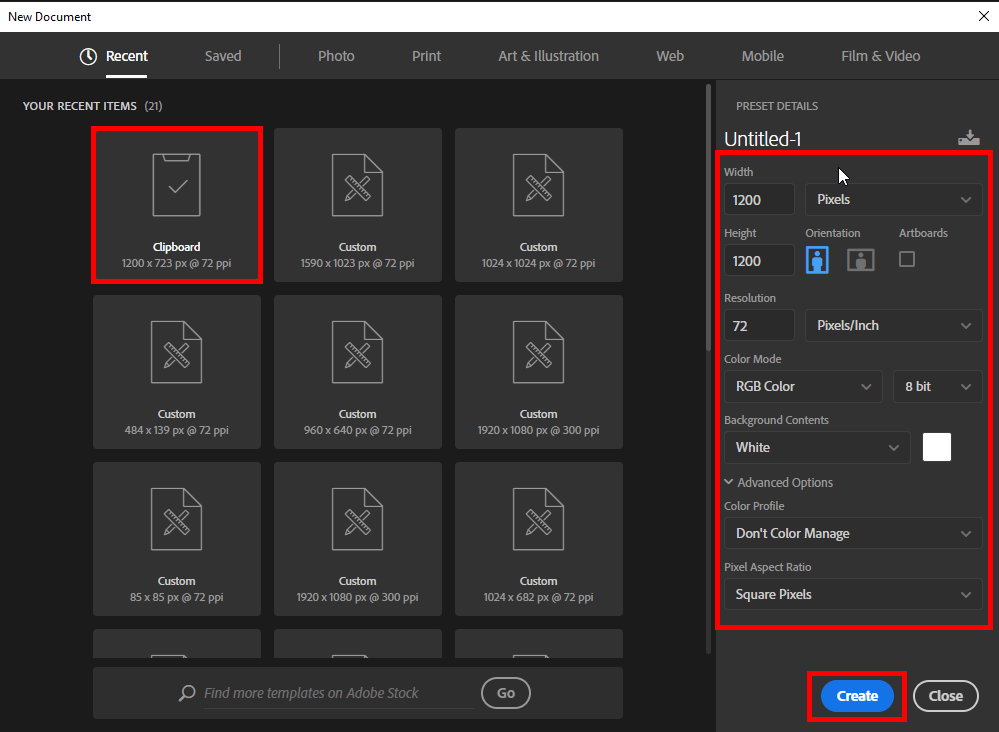
    1. Create a new document

    Start with launching Photoshop. Create a new document. Enter the preset details you see in a screenshot below.

    how to make a gradient in photoshop create a new document

    2. Grab a gradient tool

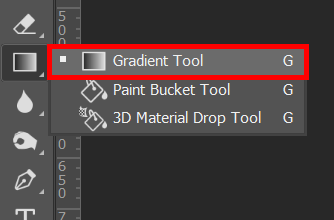
    Next, grab the Gradient Tool (G) in the Tools panel.

    how to make a gradient in photoshop gradient tool

    3. Add a new layer

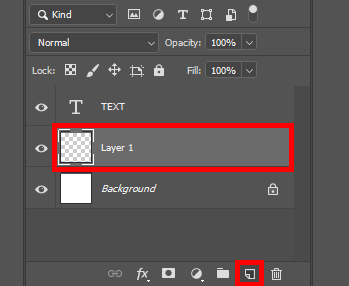
    Then, add a new layer by clicking the “Create a New Layer” button at the bottom of the Layers panel. If this panel is hidden, activate it by pressing F7.

    If you prefer using Photoshop keyboard shortcuts, use the Shift+Ctrl+N/Shift+Cmd+N key combination to create a new layer quicker.

    how to make a gradient in photoshop add new layer

    4. Open more options

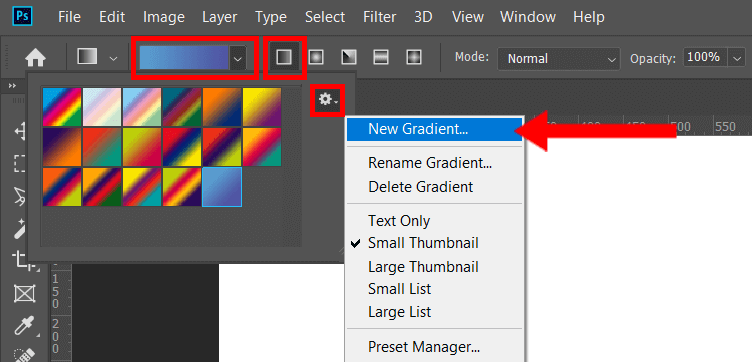
    You’ll notice the “Gradient Bar” at the top of the screen. This is where you can choose one of the ready-made templates, or customize the look of your gradient. Click on the dropdown arrow next to the gradient fill dialog box.

    You’ll see a selection of default gradients. To extend this selection, click the settings icon and go to “New Gradient.”

    how to make a gradient in photoshop open more gradients

    5. Name the gradient

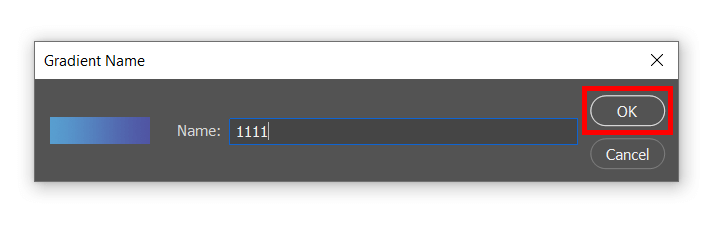
    Come up with a name for your gradient. Enter the name in the window that opens and click “ОК.”

    how to make a gradient in photoshop gradient name

    6. Choose a color

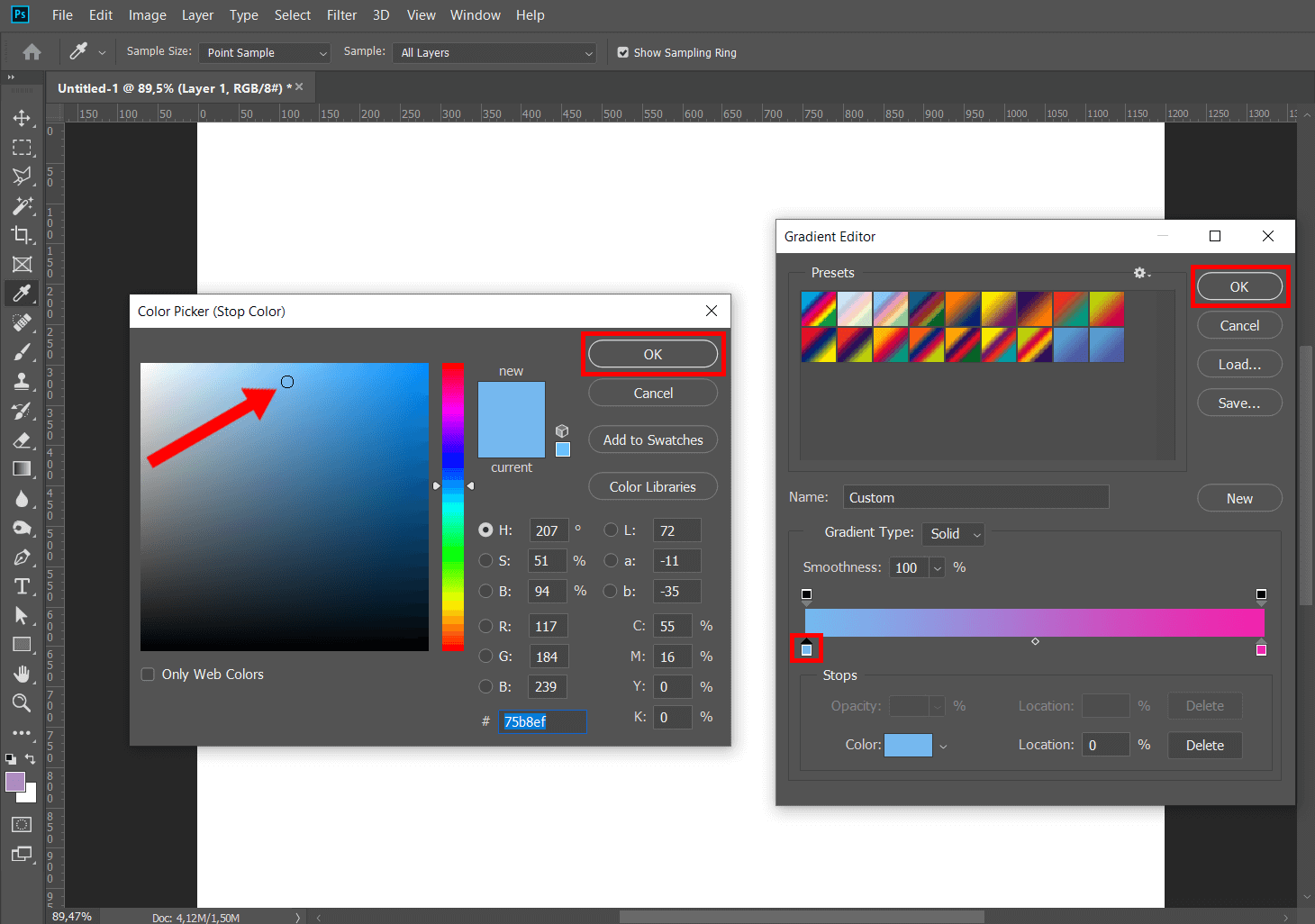
    In the “Gradient Editor” window, click on a color stop. You’ll see a “Color Picker” appear. Choose the color you like.

    The square on the left is the color your gradient starts with, and the color on the right is the shade it fades into.

    how to make a gradient in photoshop color picker

    7. Set a starting point

    Once you have done that, click and hold to set a starting point.

    8. Pick a style

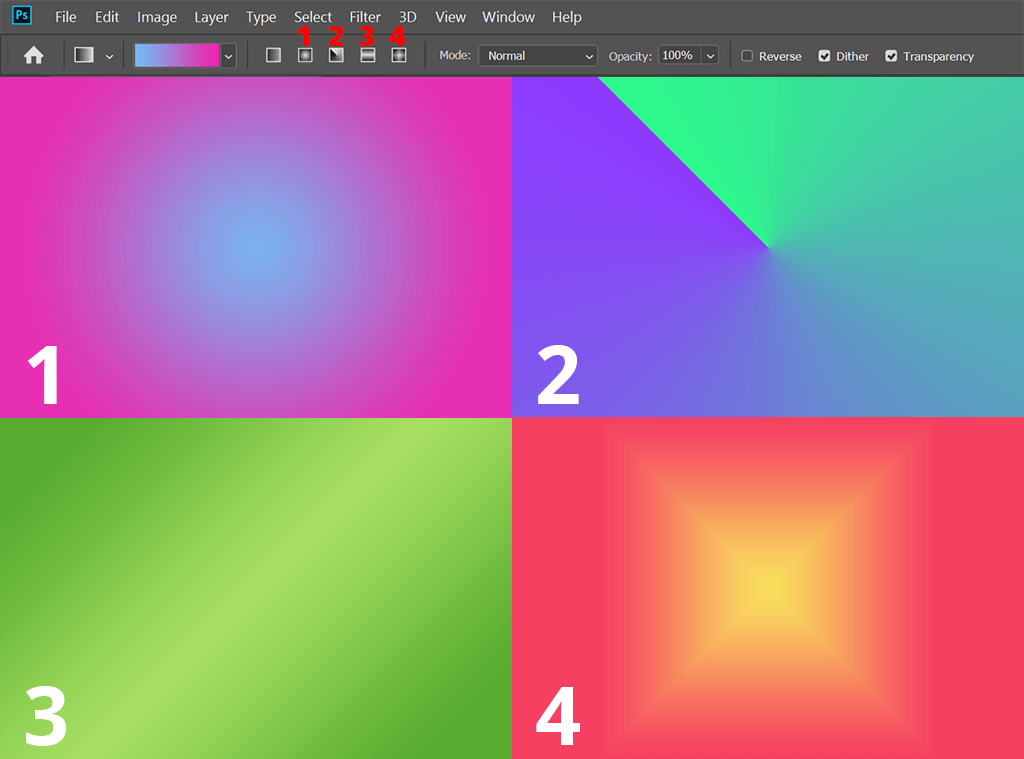
    Gradients come in different types, and you can select the one you like the most. Up at the top bar, you’ll see 5 icons that stand for different gradient types.

    Besides a linear gradient, which is a classic option that everyone is familiar with, there are 4 more that are less popular.

    A radial gradient is when one color starts in the middle in the form of a circle and then gradually changes into the next color. It visually resembles the sun.

    Angular is a counter-clockwise color sweep. It has 2 solid colors that gradually change into one another.

    A reflected gradient is basically a simple linear gradient with a reflection.

    Diamond resembles the radial gradient. The only difference is that here you have a diamond in the middle, instead of a circle.

    how to make a gradient in photoshop types

    9. Done! Save the result

    You’re done! You’ve successfully learned how to make a gradient in Photoshop.

    To save the final result, go to the “File” tab, and navigate to “Save As.” Alternatively, use the Shift+Ctrl+S/Shift+Cmd+S shortcut.

    Note: If you want to make some adjustments to the photo just let me know. I can do it for you at a very low cost. You can hire me to edit your photo.

  • HOW TO POST-PROCESS PHOTOS

    How to post-process photos

    1. Crop and straighten the image

    While you should always check if the horizon is even before taking a photo, straightening is one of the first things you’ll have to do anyway.

    Start by cropping the photo to fix small compositional issues and removing some distracting objects at the edges of the shot.

    Photoshop’s crop function gives you plenty of control and allows you to straighten the photo, change the aspect ratio, fix perspective distortion, and fill in missing parts of an image using AI.

    In Lightroom, cropping is done in the Develop Module. To access that feature, simply press the “R” key.

    2. Adjust the exposure

    If you’re a newbie photographer, exposure mistakes are bound to happen frequently, with some of your photos being overexposed and others being underexposed. That’s why the second image post-processing step you need to take is adjusting exposure.

    In Lightroom, you can change the exposure by using one of the top sliders in the Develop module. Drag the slider around to either brighten or darken the photo. Below the main slider, there are also sliders for setting the exposure for specific light and darker picture areas.

    In Photoshop, you have to choose “Image” in the top panel, go to adjustments and exposure to access similar settings.

    3. Adjust Contrast

    Contrast deals with emphasizing the distinction between the lighter and darker photo areas. By raising the contrast, you can significantly enhance the impact an image has on a viewer, as the boundaries between different areas become more visible.

    If the contrast is very small, the photo will appear flat. In most cases, your goal is to find the golden balance between the two extremes.

    In Lightroom, you change the contrast by moving the appropriate slider under Exposure. Keep sliding it to the right until you’re satisfied with the result. Feel free to change the Blacks and Clarity settings too as they also affect contrast.

    In Photoshop, pick Image > Adjustments > Brightness/Contrast. Play around with the slider until you get the needed contrast.

    4. Shoot RAW

    The majority of DSLRs shoot in JPEG by default, but it’s better to change the go-to mode to RAW if you want to have more freedom for photography post-processing.

    RAW images preserve more details and brightness and have a higher dynamic range compared to JPEG. Moreover, enhancing poor images is a lot easier in RAW, as you can adjust the exposure, highlights, and shadows without having artifacts or noise appear.

    5. Fix the white balance

    White balance is determined by the color temperature of the lighting in a photo. If you carefully examine your images, you’ll often notice a color cast.

    To easily deal with that problem in Lightroom, select the dropper tool, and click the area of the image that has to be neutral white or grey. That will fix most color temperature problems.

    In Photoshop, you can correct white balance by picking Image > Adjustments > Color balance. Use the sliders to set the colorcast of the photo. Alternatively, you can visit the Image > Adjustment > Curves menu to achieve the same result. Pick the white dropper and click on the part that has to be white and you’ll see the tint disappear.

    6. Improve color vibrancy and saturation

    Once you’ve properly set white balance, it’s time to further improve the colors by using the saturation and vibrancy settings. The difference between the two tools is subtle.

    By raising vibrancy, you increase the intensity of neutral color shades and keep the intensity of brighter tones unchanged.

    You can also change separate colors if you want more control over the photo editing. The HSL (hue, saturation, luminance) sections in Lightroom or Photoshop are extremely powerful tools for enhancing colors.

    Alternatively, you can improve your photography post-processing workflow by getting high-quality Lightroom presets and Photoshop actions, that are great for achieving a professional look in a couple of clicks.

    7. Sharpen the image

    When taking photos in RAW, they aren’t sharpened by the camera, which means you have to increase the sharpness yourself.

    Lightroom: You’ll find the sharpening tools below the detail slider. The amount determines how much the image is sharpened. Radius defines if the sharpening occurs at the edges of the pixel or in the middle. The detail setting is used for fine-tuning as it focuses on the smaller details instead of the entire photo. Masking lets users decide which image parts the effect is used on.

    Photoshop: Select the Filter > Sharpen menu, which offers multiple varying options. The most commonly-used tools include unsharp mask

    and smart sharpening, both of which have amount and radius settings, just like Lr.

    Note: If you want to make some adjustments to the photo just let me know. I can do it for you at a very low cost. You can hire me to edit your photo.

    8. Use curves

    Curves are an intricate and very useful tool for post-processing photography. It can be used to adjust contrast, increase or decrease the brightness, make barely visible objects pop up more, tweak the colors, etc. You can alter the curves by going to the “Tone Curve” section of the develop module in Lightroom, or to Image > Adjustments > Curves in Photoshop.

    There are four different types of curves:

    • Highlights: The brightest parts of a photo.
    • Lights: Mostly lighter parts, but not as extreme. It covers the brighter part of the mid-tones.
    • Darks: The darker part of mid-tones, covering everything between the lights and the shadows.
    • Shadows: The darkest parts of a photo.

    9. Use dodge and burn

    This step is often covered in skin retouching tips. The Dodge and Burn tool let you brighten or darken certain parts of a photo. Dodge lightens the selected area, while burn does the opposite.

    It acts like a brush, so you have complete freedom in choosing where to apply the effect. Both options are included in Photoshop and can be found in the toolbar, while the menu on the top lets you select the range, exposure (how bright or dark the effect will be), and the size of the tool.

    10. Use frequency separation for skin retouching

    Frequency separation is the first technique you’ll see covered in any guide on how to smooth skin in Photoshop. It entails a complicated process of separating the colors and textures of a photo into distinct layers, giving you the freedom to tweak them individually.

    High frequency covers hair, texture, pore, fine line, and skin imperfection data. Low frequency covers data on shadows, tones, and colors.

    Dividing the information into separate layers allows you to alter some of the aspects of a photo without affecting the rest of them, which can be crucial when learning how to post-process photos. You’ll be able to smoothen the skin without changing its color. As another example, you can brighten shadows without affecting the texture. Due to the precision this technique offers, it’s often used in high end retouching.

    11. Remove unwanted objects

    One of the most useful aspects of post-processing for photographers is the ability to delete objects that don’t belong to a scene. You have to learn how to remove stray hairs in Photoshop, random people walking, distracting spots, and light flares.

    Most professionals perform this type of image editing in Photoshop. It offers the handy clone stamp and healing brush tools, which are perfect for object removal. Healing brush offers 2 options: one where you establish a reference area, and the second one where the AI automatically adjusts the selected area according to the surrounding pixels.

    Lightroom can’t offer the same amount of control, but its spot deletion tool can be used similarly and is more than enough for simple adjustments.

    12. Use adjustments layers and brushes

    Adjustment layers and brushes take all of the changes that could affect the whole photo and limit them to a selected area.

    Adjustment layers in Photoshop apply changes to a layer, not the photo itself. You can add them by selecting Layer > New Adjustment Layer and picking one of the available options like exposure or vibrancy.

    Layer masks are similar in function and allow applying an effect only to the selected image area. Learning how to mask in Photoshop is a fast and simple process: at the bottom of the Layers menu, pick the white square with a black circle to add such a mask.

    Even though Lightroom doesn’t have as many tools for precise image editing, its adjustment brush works similarly. Once you’ve chosen it, you can move around various sliders to pick what exactly you want to change, then apply the effect over the needed image areas. For instance, you can use a brush for teeth whitening. Learn more about technicolor white and black.

    Note: If you want to make some adjustments to the photo just let me know. I can do it for you at a very low cost. You can hire me to edit your photo.

  • RETOUCH TIPS FOR PHOTOGRAPHERS

    10 best retouch tips for photographers

    1. Eliminate skin imperfections

    Acne, wrinkles or scars on the face significantly ruin the impression of portrait photography. However, even these disadvantages can be eliminated by applying Photoshop tools.

    With the healing brush, it is possible to restore sections of shots using the appropriate fragments taken as a sample. The spot healing brush tool automatically selects pixel samples from the area around the retouched fragment.

    To achieve smooth skin, I suggest resorting to the frequency separation technique. It separates the texture in the shot from its tone and color. As a result, you will be able to tweak particular areas, and apply Gaussian Blur to smoothen the skin and retain its natural texture.

    2. Make the eyes more expressive

    Regardless of whether the makeup is present or not, the eyes are supposed to be the most expressive part of the face. You will need to lighten the whites of the eyes but it has to be done carefully so that they don’t appear unnaturally white.

    To increase the visibility of highlights and borders, add sharpness. These techniques are often used in fashion photography.

    Paint in the masks that you have created to slightly raise the brightness of the bottom part of the eyes, around the iris. A subtle touch on the catchlights for a brighter effect won’t hurt either.

    3. Emphasize or add lashes

    Thick and beautiful lashes are another way to make your eyes more expressive and a crucial part of the makeup retouching process. For this task, try the dry media brushes bundle. They aren’t only high-resolution but also full of detail and boast rich textures.

    Add lashes along their natural growth line and stick to the needed curve. Switch between different brush thickness and intensity values to achieve natural shapes. Also, don’t draw all the lashes at the same length, otherwise, they will appear artificial.

    4. Make the eyebrows neat

    This retouch makeup point requires you to be extra careful, as it is important to remove excessive hair without making the eyebrows unnaturally accurate. To eliminate all unnecessary elements, apply the Spot Healing Brush tool mentioned above.

    Moreover, you can add the missing hairs using the appropriate brushes. Once the excessive hair is eliminated, cover up the “bare” areas with the Stamp Tool (S). Then, hold Alt for cloning bunches of hair prior to painting them onto each brow.

    The next step would be to apply the Burn Tool (O) to make each shape darker and more intense. Portrait photographers often take advantage of such tricks.

    5. Fix the texture of the lips

    Makeup doesn’t look very neat on dry and cracked lips, and portrait photography will only emphasize the undesired effect. Therefore, you should carefully work on the texture of the lips while manipulating makeup in Photoshop.

    The defects may be eliminated using the clone stamp tool. In the same way, you will be able to correct the contour of the lips, copying clean areas of skin. The next step would be to align the light and shade on the lips. To do this, you need to raise the curve on the adjustment layer.

    With a white brush of a small radius and slight transparency, you will be aligning the light and shade over the entire surface of the lips. In addition, you should pay attention to the color of the teeth. Learn how to whiten teeth in Photoshop by means of this guide.

    6. Make the makeup brighter

    The camera often dims the colors, so you need to add brightness and saturation to make up Photoshop. For this task, you will have to resort to several adjustment layers. Mind that the intensity of makeup should match the overall atmosphere of the shot.

    The suggested adjustment layers are Curves, Gradient Map, and Levels. To begin with, adjust contrast via Curves. After that, settle on Luminosity for a gray Gradient Map. Pay attention to other peculiarities of editing pictures of this genre that are covered in my selection of portrait tutorials.

    7. Add contour and highlights

    To achieve realistic makeup for Photoshop, you need to figure out how it is actually applied in real life. Skillful makeup artists and regular people put on makeup in order to contour and highlight facial features. Dark shades are necessary for defining the bone structure.

    That’s exactly what you have to do while performing makeup retouch. A new layer should be adjusted to soft light. Then proceed to paint a lighter skin tone color with a soft round brush to the parts marked in the picture below.

    A second new layer should be adjusted to linear burn. Use this layer to make the cheekbones more defined by means of faded purple color. One of the essential stages of professional makeup retouching is figuring out how to smooth skin in Photoshop.

    8. Create eyes makeup

    It is possible to add makeup to photo in Photoshop if it is absent on the actual face. Using the adjustments tool, try creating shadows by darkening the outer corner of the eye and adding shine.

    Pick a hard round brush to achieve a neater black eyeliner. For the eyeshadows, reduce the hardness value to 0%. I would like to warn you against painting with a brown color. Layer blend modes will result in brown shades appearing with a profound red undertone.

    For a more eye-catching effect, discover how to change eyes color in Photoshop.

    9. Create eyebrows makeup

    To achieve a sharper line across the upper part of the eyebrows, I suggest picking the Pen tool (P) and drawing a path across that area. Then finish the selection (the video will show you how to do it step-by-step). Press Ctrl + Enter (Windows) or Cmd + Return (Mac) to load the path as a selection.

    The next step of the eyebrow makeup retouch would be to pick the Lasso tool (L). Using the arrow keys, push the selection downward for overlapping some of the eyebrow hair. After that, create a new layer, pick the Healing Brush tool, and take fragments of the skin from above the eyebrows on the forehead as a sample.

    10. Add gloss to the lips

    Using the solid color tool in the color overlay mode, it is possible to add the desired shade to the lips. To make the lips more voluminous, take advantage of the Dodge&Burn option as part of Photoshop make up retouching.

    In order to quickly add gloss and contrast to lips, create two new layers first. Then pick a very small brush and try painting over the brighter areas of lips with white on one of the new layers. On the other layer, paint over the shaded areas with black.

    Click Filter>Gaussian Blur to blur these two layers by a couple of pixels. After that, these two layers should be adjusted to the blend mode Soft Light. The last step of the process would be to lower the opacity until you are satisfied with the result.

  • Introduction to Shutter Speed in Photography

    One of the three most important settings in photography is Shutter Speed, the other two being Aperture and ISO. Shutter speed is responsible for two particular things: changing the brightness of your photo and creating dramatic effects by either freezing action or blurring motion. In the following article, we will explain everything you need to know about it in very simple language.

    Shutter speed exists because of the camera shutter – which is a curtain in front of the camera sensor that stays closed until the camera fires. When the camera fires, the shutter opens and fully exposes the camera sensor to the light that has passed through your lens. After the sensor is done collecting the light, the shutter closes immediately, stopping the light from hitting the sensor. The button that fires the camera is also called “shutter” or “shutter button,” because it triggers the shutter to open and close.

    What is shutter speed?

    Shutter speed is the length of time the camera shutter is open, exposing light onto the camera sensor. Essentially, it’s how long your camera spends taking a photo. This has a few important effects on how your images will appear.

    When you use a long shutter speed, you end up exposing your sensor for a significant period of time. The first big effect of it is motion blur. If your shutter speed is long, moving subjects in your photo will appear blurred along the direction of motion. This effect is used quite often in advertisements of cars and motorbikes, where a sense of speed and motion is communicated to the viewer by intentionally blurring the moving wheels.

    Slow shutter speeds are also used to photograph the Milky Way or other objects at night, or in dim environments with a tripod. Landscape photographers may intentionally use long shutter speeds to create a sense of motion on rivers and waterfalls while keeping everything else completely sharp.

    On the other hand, shutter speed can also be used to do just the opposite – freeze motion. If you use an especially fast shutter speed, you can eliminate motion even from fast-moving objects, like birds in flight, or cars driving past. If you use a fast shutter speed while taking pictures of water, each droplet will hang in the air completely sharp, which might not even be visible to our own eyes.

    All of the above is achieved by simply controlling the shutter speed. In summary, quick shutter speeds freeze action, while long ones create an effect of motion when you photograph moving objects.

    How shutter speed is measured

    Shutter speeds are typically measured in fractions of a second when they are under a second. For example, 1/4 means a quarter of a second, while 1/250 means one-two-hundred-and-fiftieth of a second (or four milliseconds).

    Most modern DSLRs and mirrorless cameras can handle shutter speeds of up to 1/4000th of a second, while some can handle much quicker speeds of 1/8000th of a second and faster. On the other hand, the longest available shutter speed on most DSLRs or mirrorless cameras is typically 30 seconds. You can use a longer shutter speed by using external remote triggers, if necessary.

    Shutter speed and exposure

    The other important effect of shutter speed is on exposure, which relates to the brightness of an image. If you use a long shutter speed, your camera sensor gathers a lot of light, and the resulting photo will be quite bright. By using a quick shutter speed, your camera sensor is only exposed to a small fraction of light, resulting in a darker photo.

    However, shutter speed is not the only variable that affects the brightness of an image. There are also Aperture and ISO, along with the actual brightness of the scene in front of you. So, you have some flexibility when you’re deciding on a shutter speed, but you need to pick your other settings carefully.

    Shutter speed can be a vital tool to capture a photo of the proper brightness. On a sunny day, you may need to use a fast shutter speed so that your photo isn’t overexposed. Or, if it is dark out, a long shutter speed may be necessary to avoid a photo that is too dark (which, in turn, could require a tripod, due to motion blur from handholding the camera). For many people, this is the main reason to adjust shutter speed: to make sure your photos are the proper brightness. Still, motion blur concerns are also very important, and should not be overlooked.

    Fast, slow and long shutter speeds

    A fast shutter speed is typically whatever it takes to freeze action. If you are photographing birds, that may be 1/1000th second or faster. However, for general photography of slower-moving subjects, you might be able to take pictures at 1/200th second, 1/100th second, or even longer without introducing motion blur.

    Long shutter speeds are typically above 1 second – at which point, you will need to use a tripod to get sharp images. You would use long shutter speeds for certain types of low-light / night photography, or to capture movement intentionally. If anything in your scene is moving when you use long shutter speeds, it will appear very blurry.

    In between, shutter speeds from 1/100th second to 1 second are still considered relatively slow. You may not be able to handle them without introducing camera shake from your hands, especially close to the one-second mark.

    Also, this strongly depends upon your lens. Some lenses, such as the Nikon 70-200mm f/2.8, have specific image stabilization (also known as “vibration reduction”) technologies within the lens that can help photographers take pictures at very slow shutter speeds when hand-holding cameras, without introducing camera shake. Other lenses do not have vibration reduction, which means you need to use the reciprocal rule instead to determine how long your shutter speed should be without introducing blur from camera shake. It is also important that you know how to hold a camera.

    Note: If you want to make some adjustments to the photo just let me know. I can do it for you at a very low cost. You can hire me to edit your photo.

    How to set shutter speed

    Most cameras handle shutter speeds automatically by default. When the camera is set to “Auto” mode, the shutter speed is selected by the camera without your input (and so are aperture and ISO). However, you can still set the shutter speed manually if necessary:

    1. By setting the camera to “Shutter Priority” mode, you choose the shutter speed, and the camera automatically selects the aperture.
    2. By setting the camera to “Manual” mode, you choose both shutter speed and aperture manually.

    Within both of these modes, you can choose to set ISO manually or automatically.

    In most cases, we recommend letting the camera select the correct shutter speed for you. Still, watch to be certain that you aren’t introducing too much motion blur in a photo (or freezing motion that you want to be blurred). I cover more of this in an article on camera modes, but I tend to shoot in “Aperture Priority” mode 95% of the time, letting the camera calculate the shutter speed automatically.

    How to find shutter speed

    Do you know how to find what your camera shutter speed is set to? It is typically very easy to find it. On cameras that have a top panel, the shutter speed is typically located on the top left corner, as circled:

    If your camera does not have a top LCD, like some entry-level DSLRs, you can look through the viewfinder, where you will see the shutter speed on the bottom-left side. And if your camera has neither a top LCD nor a viewfinder, like many mirrorless cameras, you can see your shutter speed simply by looking on the back screen.

    On most cameras, the shutter speed will not show up directly as a fraction of a second – it will typically be a regular number. When the shutter speed is longer than or equal to one second, you will see something like 1” or 5” (with the quotation sign to indicate a full second).

    If you still cannot find the shutter speed, set your camera to “Aperture Priority” mode, and make sure that you have turned “AUTO ISO” off. Then, start pointing around your camera from dark to bright areas. The number that changes will be your shutter speed.

    Note: If you want to make some adjustments to the photo just let me know. I can do it for you at a very low cost. You can hire me to edit your photo.

  • What is a Mirrorless Camera?

    What is a Mirrorless Camera?

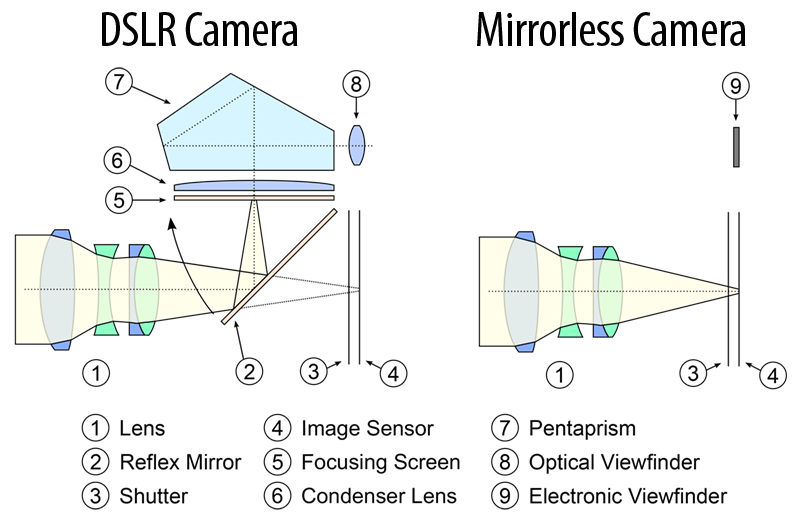
    While a DSLR camera uses a mirror mechanism to either reflect light into an optical viewfinder or pass it through directly to the camera sensor, a mirrorless camera completely lacks such mirror mechanism (hence the name), which means that the light passing through the lens always ends up on the imaging sensor. Since light is no longer reflected on an optical viewfinder (OVF), mirrorless cameras typically rely on electronic viewfinders (EVF) and LCDs that basically project what the imaging sensor sees. Because of the lack of a mirror mechanism and an optical viewfinder, mirrorless cameras can be made simpler, lighter, and less bulky when compared to DSLR camera.

    Below is an illustration that shows the difference between a DSLR and a mirrorless camera:

    DSLR Compared to Mirrorless Camera

    As you can see, when compared to a mirrorless camera, a DLSR has a lot more components that make up the internals of the camera. Aside from the complex mirror mechanism, there is a focusing screen, a condenser lens, pentaprism / pentamirror and other components such as a secondary mirror and a phase-detection autofocus sensor that are present on a DSLR.

    How Mirrorless Cameras Work

    In contrast, a mirrorless camera is much simpler mechanically – light passes through the lens (#1) directly onto the image sensor (#4) and the optical viewfinder is replaced with an electronic viewfinder (#9) that replicates the image sensor. In normal operation, the mechanical camera shutter (#3) stays open and is only typically utilized at the end of exposure. Due to lack of both mirror and pentaprism, the flange distance (which is the distance between the lens mount and the image sensor) on mirrorless cameras can be shortened significantly, as the illustration above shows. Because of this, most mirrorless camera bodies are thinner and lighter compared to DSLRs.

    Mirrorless cameras have many advantages over DSLR cameras. Aside from the potentially lighter weight and bulk of the camera itself, the use of an electronic viewfinder can bring many benefits to photographers. Since everything is duplicated directly from the image sensor, camera settings such as white balance, saturation and contrast can be seen through the viewfinder directly and additional information overlays including live histograms can be placed within the viewfinder, allowing photographers to see exactly what they are about to take a picture of. When combined with fast contrast-detection or on-sensor phase detection system, one can take advantage of being able to zoom in on a subject to verify focus, use focus peaking, face detection and other powerful features to ensure that focus is achieved precisely with every shot. When shooting in daylight conditions, one can utilize the electronic viewfinder to review images, instead of relying on the back LCD of the camera.

    At the same time, mirrorless cameras have their list of disadvantages. First, the electronic viewfinder can only be active when the camera is turned on and power is provided to the image sensor, which can significantly affect the battery life of a camera. Second, electronic viewfinders can have noticeable lag, blackouts and high contrast, which can make it difficult for some photographers to get used to. When it comes to autofocus, although the latest mirrorless camera models can be very fast and accurate, they still do not do as well when shooting fast action, especially in low-light situations.

    We wrote a detailed post that compares mirrorless cameras to DSLRs, so if you would like to find out more about the pros and cons of each, please take a look at our Mirrorless vs DSLR article. Explore the article of best cameras for movie production.

    Note: If you want to make some adjustments to the photo just let me know. I can do it for you at a very low cost. You can hire me to edit your photo.

  • What is a DSLR Camera?

    DSLR stands for “Digital Single Lens Reflex”. In simple language, a DSLR is a digital camera that uses a mirror mechanism to either reflect light from a camera lens to an optical viewfinder (which is an eyepiece on the back of the camera that one looks through to see what they are taking a picture of) or let light fully pass onto the image sensor (which captures the image) by moving the mirror out of the way.

    Although single lens reflex cameras have been available in various shapes and forms since the 19th century with film as the recording medium, the first commercial digital SLR with an image sensor appeared in 1991. Compared to point-and-shoot and phone cameras, DSLR cameras typically use interchangeable lenses.

    1) What DSLR camera consist of

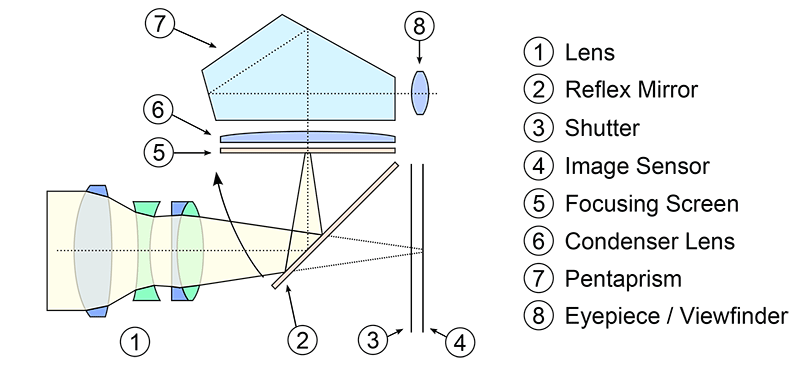
    Take a look at the following image of an SLR cross section (image courtesy of Wikipedia):

    DSLR Cross Section

    2) How DSLR camera work

    When you look through a DSLR viewfinder / eyepiece on the back of the camera, whatever you see is passed through the lens attached to the camera, which means that you could be looking at exactly what you are going to capture. Light from the scene you are attempting to capture passes through the lens into a reflex mirror (#2) that sits at a 45 degree angle inside the camera chamber, which then forwards the light vertically to an optical element called a “pentaprism” (#7). The pentaprism then converts the vertical light to horizontal by redirecting the light through two separate mirrors, right into the viewfinder (#8).

    When you take a picture, the reflex mirror (#2) swings upwards, blocking the vertical pathway and letting the light directly through. Then, the shutter (#3) opens up and the light reaches the image sensor (#4). The shutter (#3) remains open for as long as needed for the image sensor (#4) to record the image, then the shutter (#3) closes and the reflex mirror (#2) drops back to the 45 degree angle to continue redirecting the light into the viewfinder.

    Obviously, the process doesn’t stop there. Next, a lot of complicated image processing happens on the camera. The camera processor takes the information from the image sensor, converts it into an appropriate format, then writes it into a memory card. The whole process takes very little time and some professional DSLRs can do this 11+ times in one second!

    The above is a very simple way to explain how DSLR camera work.

    To read a lot more about DSLRs, check out this great article at Wikipedia.

    Note: If you want to make some adjustments to the photo just let me know. I can do it for you at a very low cost. You can hire me to edit your photo.